

Why Saving Reels to Your Camera Roll Matters
If you’ve ever created a reel that turned out better than expected, or found a video that inspired you, you probably wanted to save it directly to your camera roll. Maybe you want to re-edit it later, upload it somewhere else, or just keep it as a memory. Whatever your reason, knowing how to save your Reel to camera roll properly helps you stay creative and organized.
The good news? You don’t need complicated tools or editing skills. Whether you’re using Android or iPhone, the process is super simple once you know the right options inside Instagram.
How to Save Your Reel to Camera Roll Before Posting

If you’re still editing your reel and haven’t posted it yet, you can easily save it without the watermark or any additional tools.
Here’s how:
- Open Instagram and go to the Reel creation screen.
- After editing, before posting, tap the Download (↓) or Save icon at the top.
- The reel will be saved to your camera roll with all audio and effects included.
Pro Tip: If you used a trending sound from Instagram’s library, the audio might not be included in your saved video due to copyright limits. To keep full audio, record your own sound or add royalty-free music manually.
How to Save Your Posted Reels to Camera Roll
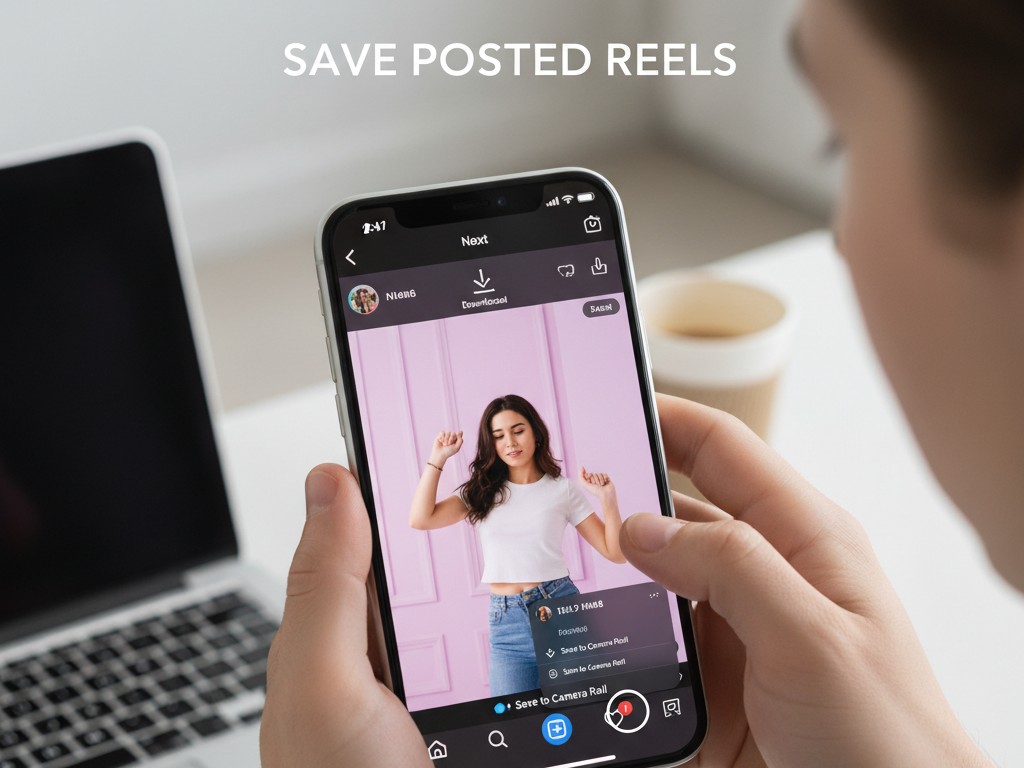
Already posted your reel and now want to save it? Don’t worry, Instagram lets you do that too.
Follow these steps:
- Go to your profile and open the Reel you want to save.
- Tap the three dots (⋯) at the bottom right of the screen.
- Select Save to Camera Roll or Download.
The reel will be saved to your device in the same quality it was uploaded.
Note: Some filters or audio might be slightly compressed due to Instagram’s compression settings, but your main content remains intact.
How to Save Your Reel to Camera Roll from Other Users (Without Posting or Screen Recording)
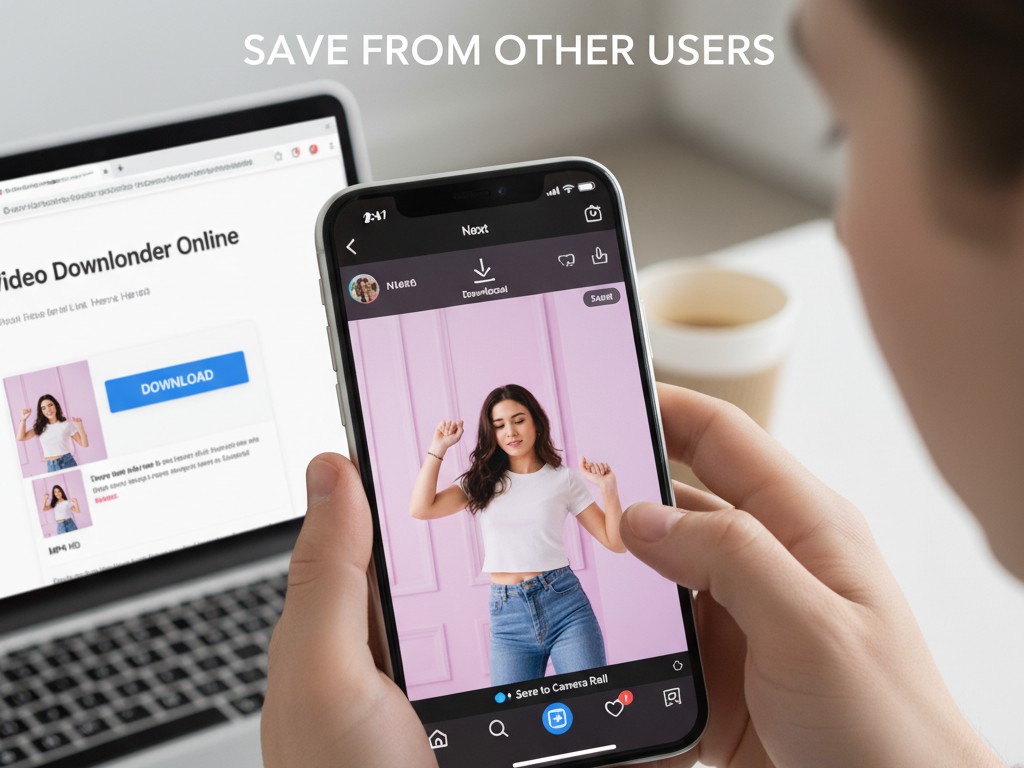
If you’re trying to save someone else’s reel for inspiration or offline viewing, Instagram doesn’t offer a built-in option for that, but you can still do it safely using a trusted online video downloader.
Here’s how:
- Open the reel you want to save and tap the Share (⋆) icon.
- Select Copy Link.
- Go to Video Downloader Online, a free online video downloader that supports Instagram, YouTube, TikTok, and more.
- Paste the link and tap Download.
- Choose MP4 HD to save the video to your camera roll.
No apps, no login, and no watermark, just paste, download, and enjoy.
Why Video Downloader Online Is the Smartest Option
You might find many download tools online, but few are reliable, clean, and safe. Video Downloader Online stands out because it’s:
- Completely free – no subscription or hidden charges.
- Multi-platform – works for Instagram, Facebook, YouTube, and Reddit videos.
- HD quality supported – save videos in 720p, 1080p, or higher.
- No watermark – download clean videos without logos.
- Browser-friendly – works directly from Safari, Chrome, or any default browser.
If you’re working on Reels for business, school projects, or personal storytelling, this tool is perfect for keeping your favorite clips safely stored.
Saving Reels with Audio Included
If your main concern is preserving music and sound, make sure you’re using the right source before saving.
Here’s how to ensure audio stays intact:
- If it’s your own voice or music, it’ll always save with sound.
- If it’s licensed audio from Instagram’s music library, it might be muted when saved externally due to rights restrictions.
- To avoid that, use royalty-free audio or your original sound while creating the reel.
If you’re downloading Reels through a video downloader online, choose the MP4 (with sound) option for full playback.
How to Save Reels Without Losing Quality
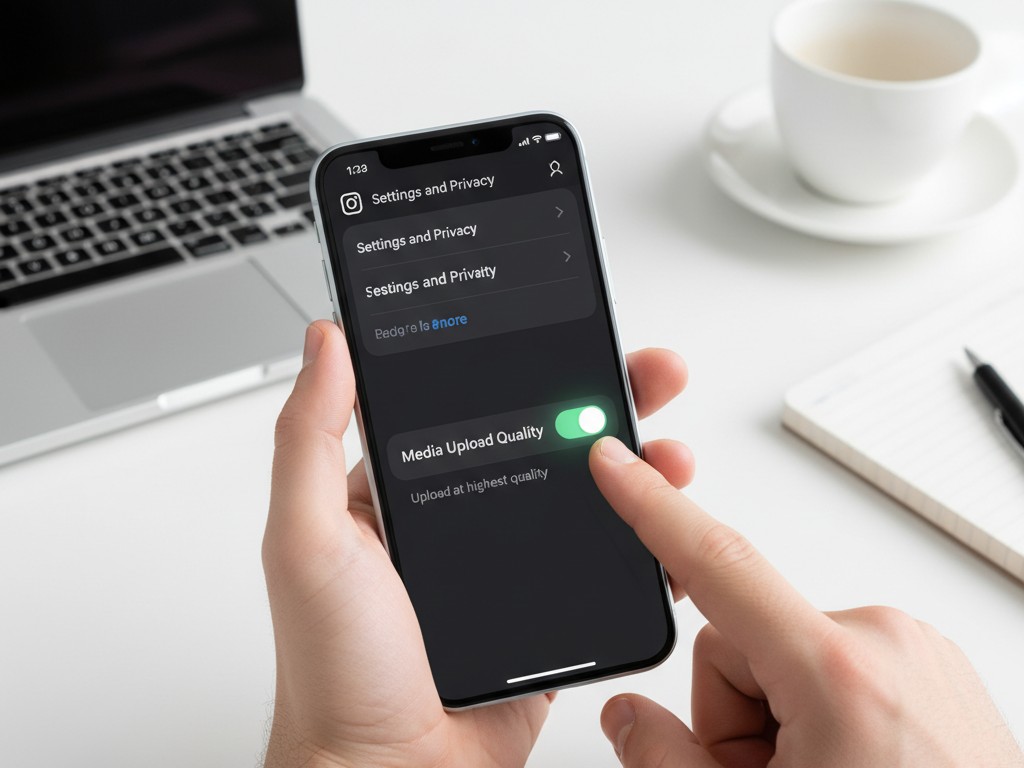
Sometimes saved videos appear blurry or pixelated. That’s because Instagram compresses files during uploads and saves.
Here are a few ways to preserve HD quality:
- Turn on High-Quality Uploads in Instagram settings:
- Go to Settings → Data Usage → Media Upload Quality → High Quality.
- Download the reel directly after creation (before posting).
- Use a third-party downloader that supports video downloader online HD options.
This ensures your videos stay crisp and ready for re-sharing or editing later.
Why Creators Save Reels to Camera Roll
Saving your reels isn’t just about storage, it’s about control. Here’s why creators, influencers, and brands often save their content locally:
- Backup: Prevent losing your videos in case of account suspension or accidental deletion.
- Editing: Edit or repurpose the same clip for multiple platforms like TikTok, YouTube Shorts, or Facebook Reels.
- Portfolio: Keep an offline archive of your best-performing Reels for presentations or collaborations.
- Offline sharing: Easily share clips on WhatsApp, Telegram, or via AirDrop without uploading again.
If you’re working on multiple platforms, saving your Reels early helps you stay consistent and avoid re-creating the same content.
How to Save Reels from Drafts
Did you know you can even save your drafts? If your reel is unfinished, here’s how to keep it safe:
- Open Instagram → Profile → Reels Tab → Drafts.
- Tap the reel you want to save.
- Press Edit, then tap the Download arrow icon at the top.
Your reel (without effects or audio restrictions) will be saved to your phone’s gallery.
This is perfect for creators who make content in batches and want to post later.
Common Issues When Saving Reels
Here are some issues users often face, and how to fix them quickly:
| Issue | Possible Reason | Fix |
|---|---|---|
| Reel saves without sound | Licensed audio | Use original or royalty-free sound |
| Reel looks blurry | Compression | Turn on “High Quality Uploads” |
| No save option visible | App version outdated | Update Instagram |
| Download link not working | Temporary glitch | Try refreshing or using a browser downloader |
Backup Plan: Keep Your Reels Safe
If your account ever gets suspended or you lose access, you’ll want to have your best videos backed up. Regularly saving your reels to your camera roll or through tools like Video Downloader Online ensures your creative work isn’t lost forever.
You can even re-upload your reels later or repurpose them into YouTube Shorts, TikToks, or compilation videos.
Final Thoughts
Learning how to save your reel to camera roll is a small step that gives you big creative freedom. You can edit, repurpose, and protect your content without relying only on Instagram’s cloud storage.
Whether it’s for personal memories or your social media brand, having your reels offline ensures your creativity stays with you, always accessible, always safe.
So next time you make a reel worth remembering, don’t forget to hit Save to Camera Roll or use Video Downloader Online to back it up in HD quality.